
If you remember the email address that's associated with your account, the system can email you a password reset link. This is the most common way to recover your account when you don't know your username or can't remember your security question.
Before you start
- You need your last name and the email address that's on your account.
- You need to be able to open that email account — the reset link gets sent there.
- If your email address has changed since you created your account, this method won't work. Contact your national office to update your email address first.
Step 1 — Request the reset email
- Go to the sign-in page for your sport and click Forgot user name or password? below the Sign In button.
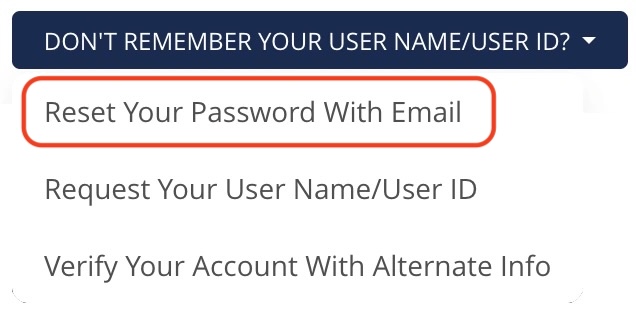
- On the Forgot Your User Name or Password? page, the Username method is selected by default. Below the Submit button, click the dropdown labeled Don't remember your User Name? and choose Reset Your Password With Email.
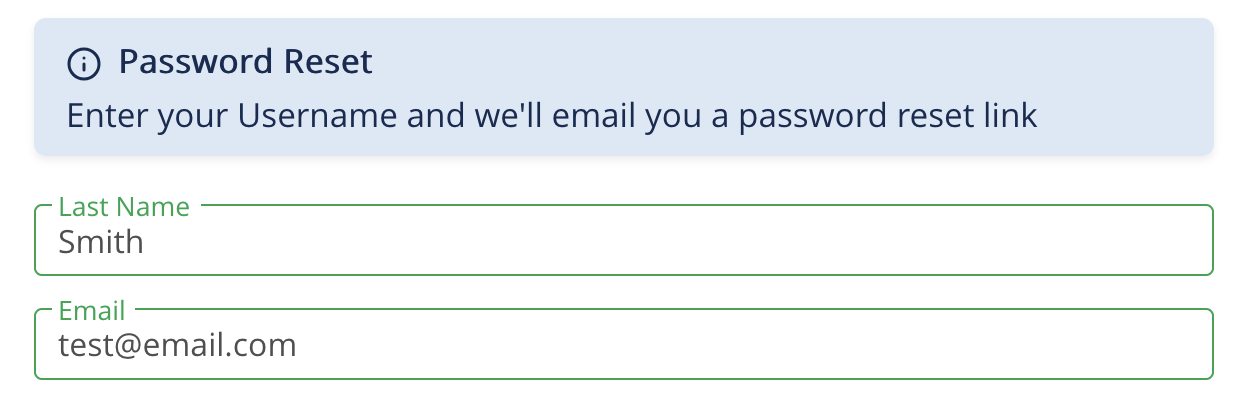
- The form will switch to ask for your Last Name and Email. Fill in both fields exactly as they appear on your account.
- Complete the CAPTCHA challenge if one is shown.
- Click Submit.
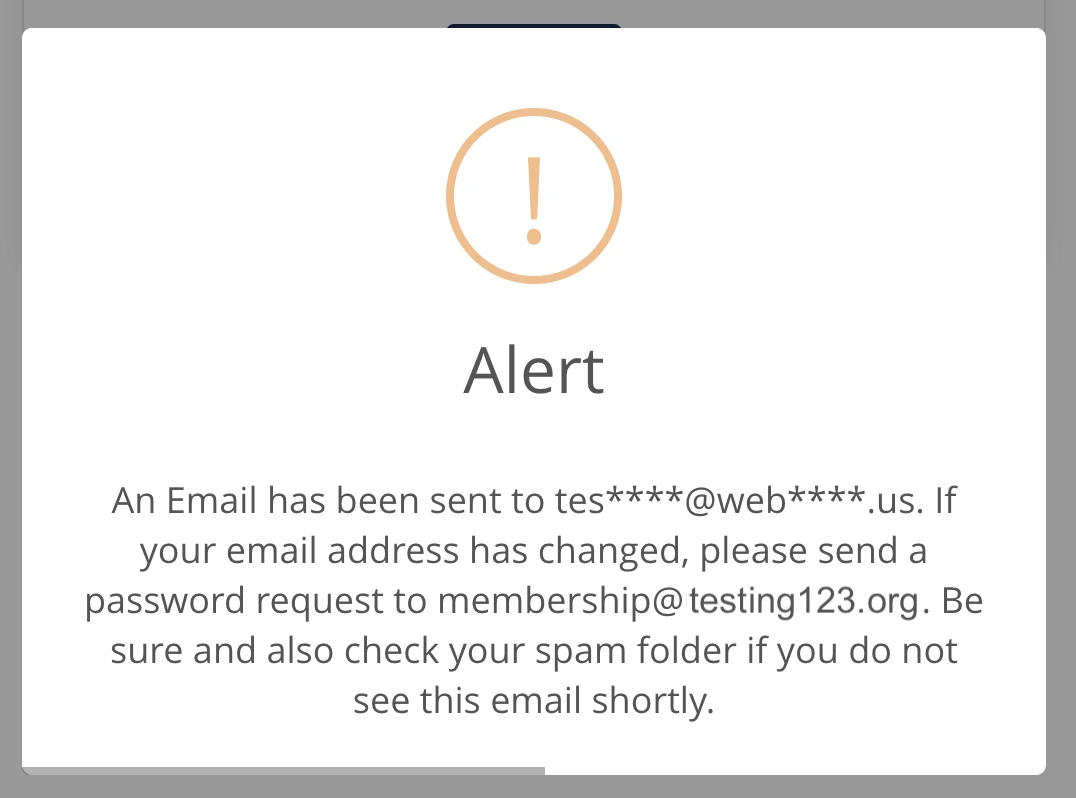
- If only one account matches your information, the system will send a password reset email to that account and you'll be returned to the sign-in page with a confirmation message like: An Email has been sent to s***e@example.com. If your email address has changed, please send a password request to [your national office]. Skip ahead to Step 2.
- If multiple accounts match (for example, you and a family member share the same email address), you'll see a list of matching accounts with a partial name, the email on file, and the birth year for each one. Click the radio button next to your account, then click Reset Selected Account. A reset email will be sent to that account.
Step 2 — Open the email and click the link
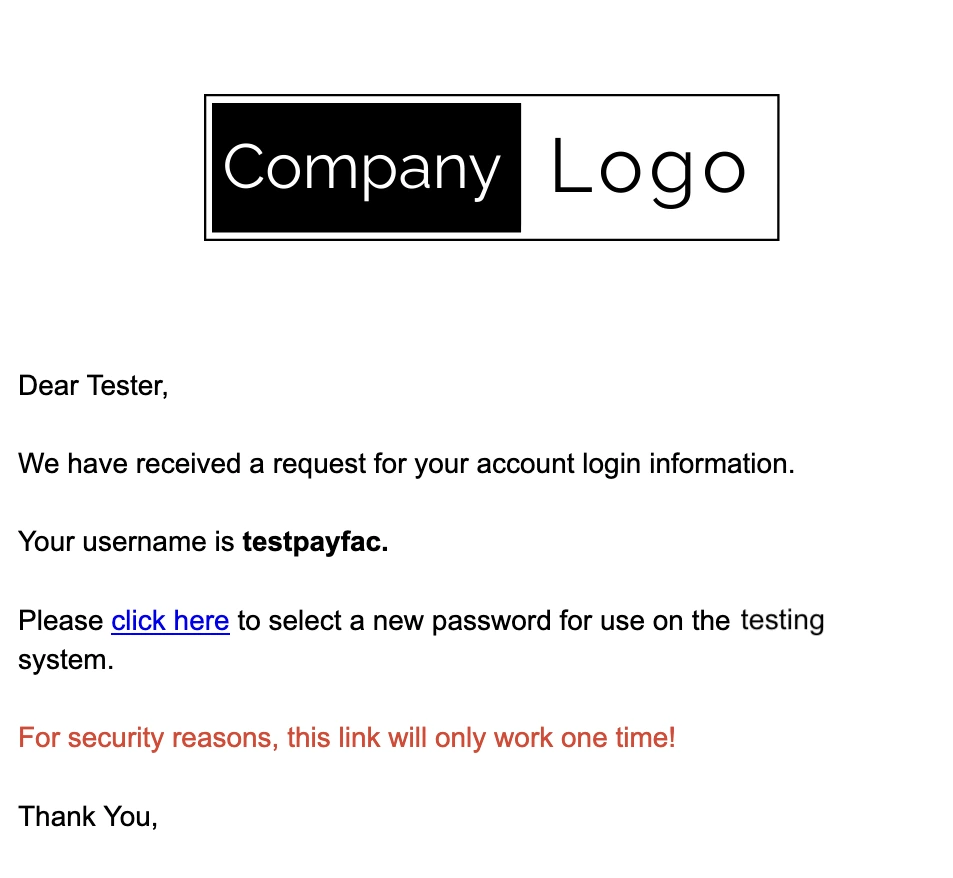
- Open your email. Look for a message from your sport's system containing a password reset link. If you don't see it within a few minutes, check your spam or junk folder.
- Click the password reset link in the email. It will open a Change Password page in your browser.
Step 3 — Choose your new password
- On the Change Password page, your username will be shown at the top (so you can remember it for next time). Below it, the page reads: Please select a new password you will remember for this system.
- Type your new password into the New password field, then type it again into the Confirm new password field. Your new password must be at least 8 characters.
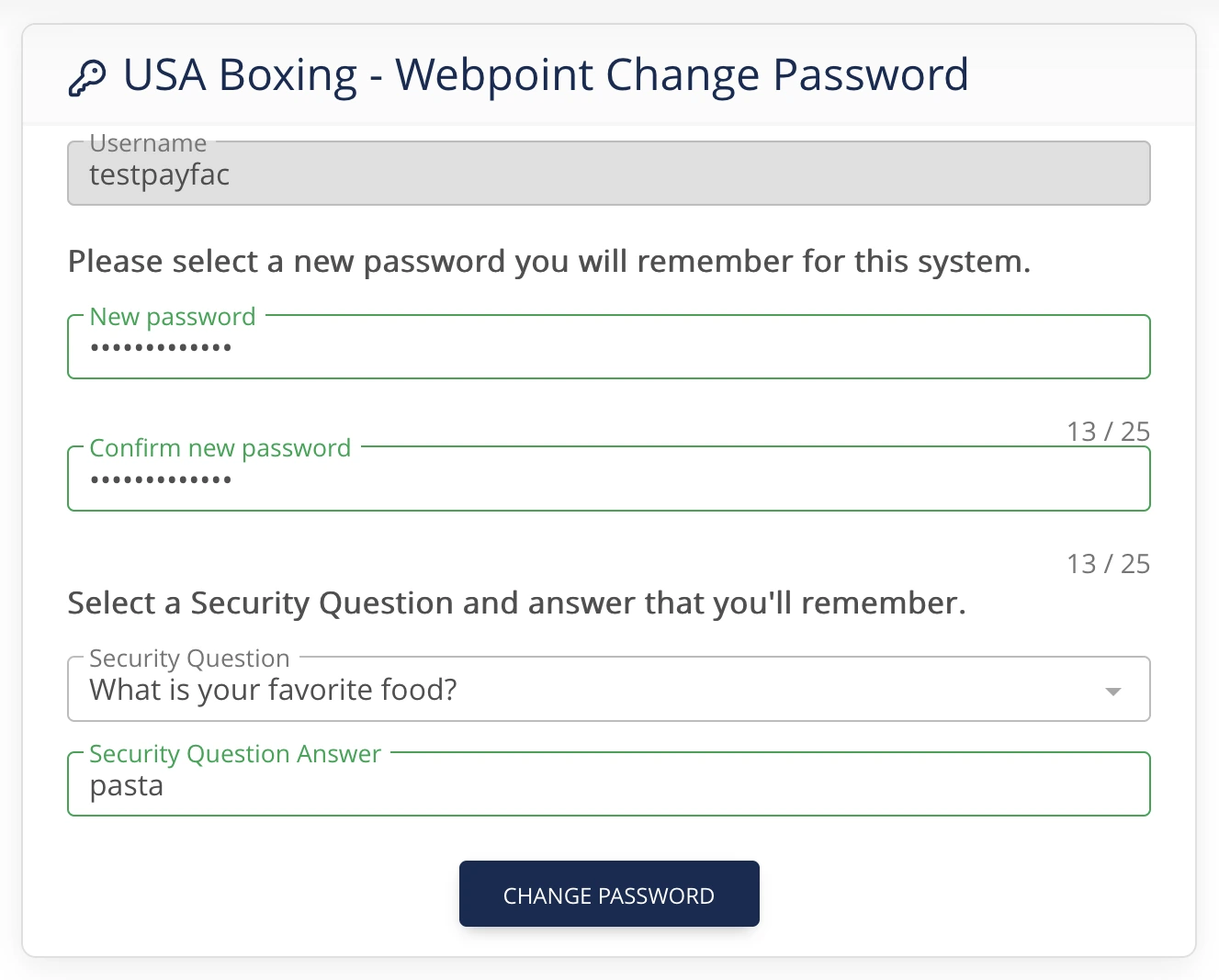
- If your account doesn't have a security question on file yet, you'll also be asked to Select a Security Question and answer that you'll remember. Pick a question from the dropdown and type an answer you'll remember — this is what you'll be asked for if you use the username recovery method in the future.
- If your account already has a security question, you'll see Security Question for [your name] and the question will be shown. Type the answer to confirm it's really you.
- Click Change Password.
- You'll be returned to the sign-in page. Sign in with your username and the new password you just set.
Common error messages and what they mean
- "No user account was found with this profile." — The combination of last name and email you entered doesn't match any account. Double-check spelling, try a different email, or try the name and date of birth method.
- "The email address you entered is not the one associated with this account. Please review your information and try again." — The last name matches an account but the email doesn't. Try a different email address you may have used.
- "Unable to process password reset — no email address found for this account. Please contact your national office for further assistance." — Your account doesn't have any email address on file at all. You'll need to contact your national office to add one before you can use this recovery method.
- "We're sorry, an error occurred while processing your request. Please try again." — Something went wrong on our side. Try again in a minute; if it keeps failing, contact your national office.
- "This is a managed account and cannot be logged into directly. You MUST log in using the managing user's account to manage this account." — This account is a managed account — it's linked to and controlled by another person's account, most commonly a parent's or guardian's account. Managed accounts are typically set up for minors or dependents so that one adult can manage memberships, registrations, and certifications for everyone in their household from a single login. Because of this link, the managed account cannot be logged into on its own. It has no independent login of its own to sign in with — it is always accessed through the account that manages it.